- Add a Page trigger Interaction and select Mouse move in viewport
- Select the Header 142 Images [Move] animation inside On mouse move
- Set Smoothing to 90%
- Under Trigger Settings select to trigger on Desktop and above only

Powering the new global content economy
A fully automated exchange for video and photography, connecting creators with buyers worldwide.





The picks and shovels for digital storytellers.
The Egoli Exchange is a fast-growing digital marketplace for video and photography, built for the ever-evolving creator economy. Egoli is not just another content platform. It is building the infrastructure for how digital content is bought and sold.
We enable rights holders, brands and independent creators to manage and monetise content instantly through an e-commerce-style experience. The Egoli Exchange is not a static archive. It is a live, open exchange where content is actively organised, shared and traded.
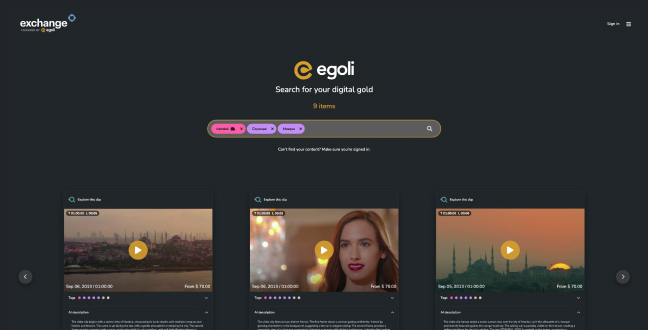
Search
Users can search for content on the public site or access subscriber content when invited via a sign up code. Subscribers always choose who can see their content and can be kept as a private, searchable archive, inviting collaborators to view selected items whenever needed.
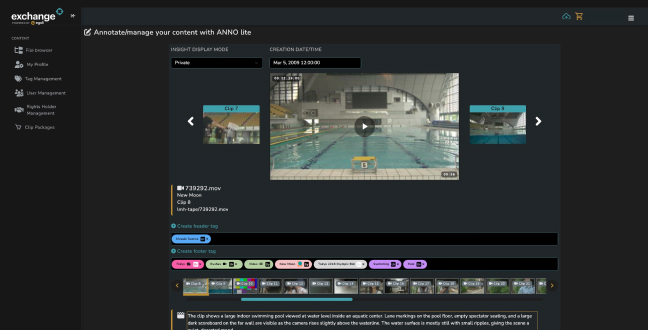
Store
Subscribers upload their videos and photography to Egoli, where AI prepares the content for the Exchange by automatically tagging and pricing each item. Once processed, selected content becomes available to the public or to invited users.
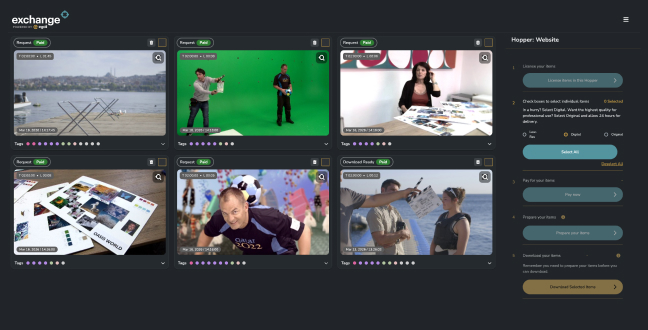
Sell
Users can license content through a familiar shopping-cart checkout, with revenue shared between the Subscriber and Egoli. Subscribers can track sales through dedicated dashboards and gain user insight through engagement analytics.
Pricing & Subscriptions
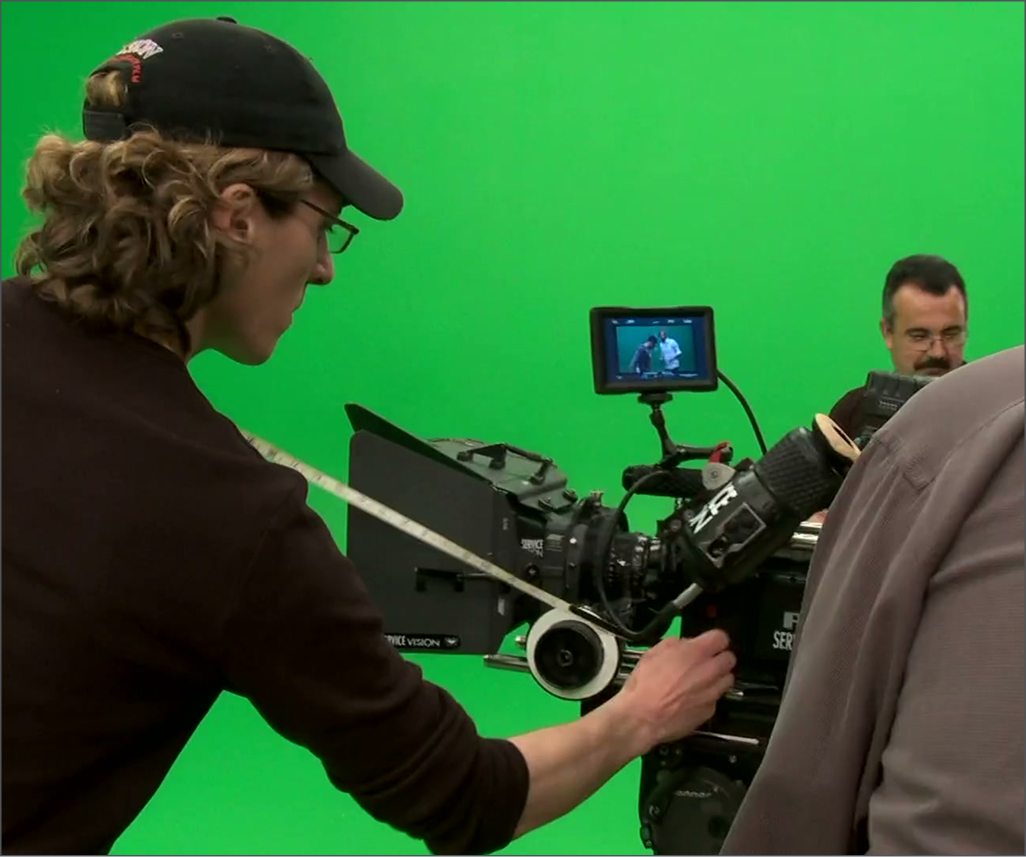
The human intelligence behind the AI

An Olympic Hall of Fame (FICTS) inductee, Caroline successfully exited her production company, New Moon, in 2017. Her work has received Emmy nominations and recognition at the Moondance Film Festival and the Cannes Dolphins Awards. She has also been nominated twice for Entrepreneur of the Year in Britain and was named South African Woman in Business of the Year in 2013.

A technologist specialising in full-stack automation, predictive analytics, and consumer intelligence, Alex has developed security software for the Johannesburg Stock Exchange, data systems for De Beers to locate diamonds, and unmanned fly-farming technology funded by the Bill & Melinda Gates Foundation.

A specialist in client engagement and innovation, Joe has been with Egoli since the very start and supports Refinery clients including IPC, PSA, SuperTri, The Invictus Foundation and IMMAF. He was previously a research analyst for Melbourne City FC, Manchester City FC, and the Daily Mail.
FAQ's
General
Click Sign in at the top right-hand corner of the page and select Sign up. We recommend using your email address as your username and choosing a password you will remember.
If you were invited by an organization, please enter the Sign-up code they have given you to also access their content and special pricing.
Please contact findgold@egoli.ai
Please contact the organization you expected an invitation from and request your unique code. Alternatively, you can use the public content code IAMINVITED to gain access to unrestricted content on the Egoli Exchange.
You will have access to all unrestricted content that has been made publicly available by subscribers to the Egoli Exchange. If you have been invited by a subscriber (e.g. a rightsholder or creator), you will also have access to the content they have invited you to view. Once you Sign up, invitation only content will be prioritised over public content.
Please ensure you are using the correct login details. If you have forgotten your password, please follow the Forgot password pathway on the Signin page. If you are still experiencing log-in issues, please contact findgold@egoli.ai.
All content on the Egoli Exchange is organized in subscriber-owned vaults. When content is uploaded to Egoli it is run through our AI recognition system which generates descriptions and tags which allow users to search the Egoli Exchange.
A subscriber is a rightsholder or creator who uploads their content to Egoli to organize it and share within their own organization or to sell it to others. The terms of sale or licensing are determined by the subscriber and automated on the Egoli Exchange to create an e-commerce style experience. Users are the people who license the content stored in Egoli by subscribers.
Users are invited to access content by subscribers on terms to reflect the relationship with the subscriber. If you are from a partner organization, you may be given free access to content or a nominal processing fee. But if you are not associated with the subscriber, you may need to pay the full licensing price for the content.
Subscribers (e.g rightsholders and creators) have the option to customize the way their vaults look and feel. Subscribers also provide multi-tiered access to their content with different privileges and pricing for different types of users.
Search
Just type the word that best describes the content you want to find. If your word matches a tag in the Egoli Exchange, you can select that tag from the dropdown list and it will appear in the search bar. Add multiple tags to refine your search and then click the magnifying glass in the search bar to take you to videos and photographs that match your tags.
Results will be visible in a grid and you can further refine your search using the tag filters on the left-hand side. If you click on Explore this clip, you may be able to select other clips from a continuous sequence.
Tag categories allow you to refine your search by different concepts. Click on any of these category buttons on the left hand side to explore the tags available within each category. Filter by A-Z to find and click on your choice of tags to add to your search string & narrow your search.
Insight: The tags are different colors to represent the value of each type of tag, with Names (People and Teams) being the most valuable, followed by location and title.
Yes, the more tags you include, the more specific your search.
This will take you to an enlarged clip player with a clip scroller below. You can view all the clips included in the scroller to select different moments or angles associated with your search.
On the left of screen, you can refine your search by selecting tags which are associated with your initial search. This will reduce the number of clips to consider, as your search will become more specific.
To the right of the featured clip, you are able to search the AI descriptions and any associated audio transcription using text-based search to explore the content to find the specific moments you want.
Yes, once you have selected Explore this clip the entire event, show or collection is represented on the clip scroller below the featured clip. You can select multiple clips for download either as a merged sequence or as separate individual clips.
The clip scroller below the featured clip lets you navigate moments before and after the clip you’ve selected. Using Shift + Click, you can merge a range of sequential clips and using CTRL + Click (Windows) or CMD + Click (MAC), you can select multiple separate clips. Once selected, click the teal Add to Hopper bar to send your clips to your chosen Hopper. You can add to an existing Hopper or create a new one.
You can search both AI descriptions and audio transcriptions by selecting the relevant panel and entering a free text search. Click the relevant section to snap to the associated clip in the collection.
If anything looks incorrect in the AI descriptions, click the Correct our AI button to notify the Egoli team.
If you get stuck, just click the I need some help finding what I want button on the left of your screen. This will raise a ticket with the Egoli human team who will be able help.
Retrieval & Download
The Egoli Exchange is a marketplace for video and photography, so choosing clips from the platform works much like using an online shopping cart for buying physical products. Click the Add to Hopper button above your selected clip and either add it to an existing Hopper or create a new one.
A Hopper is a shopping cart. You can fill multiple hoppers which you can check out or share to give you control over how you buy or share the content you have selected.
Click on the Add this clip to Hopper button and give it a name of your choice in the pop-up box. If you are going to add more clips to this Hopper, you can choose the default option until you are ready to prioritise another Hopper.
Once you have collected all the clips you want in a Hopper, click on the Hopper icon next to your username at the top right of the screen. You can then view, manage, and download all of your clips by following the on-screen instructions.
You will see that your Hoppers are marked as Licensed or Unlicensed. If you have been invited by an organization to access their clips, your clips may automatically appear as Licensed. If they are marked Unlicensed, you’ll need to license them first by completing the licence form before you can get your clips.
Click on the Hopper containing the clips you want to retrieve. On the right-hand side of the screen, you will be guided through the steps to get your clips.
First, click License items in this Hopper to complete the licence form.
You can select all clips or choose individual clips, then select the required format: Low-Res, Digital, or Original.
Click Pay Now to proceed to payment. Once payment is complete, your clips will be prepared and collected from the vault, ready to be downloaded. You may have been given these clips for free by the subscriber and in this case no payment is required.
At this point clips will be prepared. Please be aware that this can take up to 24 hours if you have requested a high quality Original as the clip may need to be retrieved from a deep vault.
When a clip is ready, it will show Download Ready.
Select the Download Ready clip(s) and click the gold Download Selected Items button to download.
All content is available at 3 different levels of technicalquality.
Low res is a lightweight very small file which can be used for reference or in off-line/draft content. Subscribers will often choose to watermark these clips.
Digital is usually 1080p and most suitable for use in social media & most digital marketing.
Original is the quality in which the material was originally captured. This is the heaviest file & may take up to 24 hours to download. This is the format you need for broadcast or large format use.
Discount clip packages may be made available by subscribers (e.g rightsholders or creators). Please enquire about availability of packages by contacting the subscriber. If you are unsure, contact findgold@egoli.ai.
An individual Digital clip is likely to take around 2 minutes to retrieve. This is because of the many layers of computing which need to happen to package the images with the multiple audio tracks & also include the data which has been generated by AI. If you are downloading merged clips from the timeline, your download will take longer (assume that 10 merged clips could take up to 10 minutes).
If you are downloading an Original clip, this could take up to 24 hours to prepare. The download process after preparation is dependent on your internet connection speed.
If you are still concerned that your Hopper is taking too long to prepare, please contact findgold@egoli.ai as soon as possible.
Still have questions?
Email us at findgold@egoli.ai
